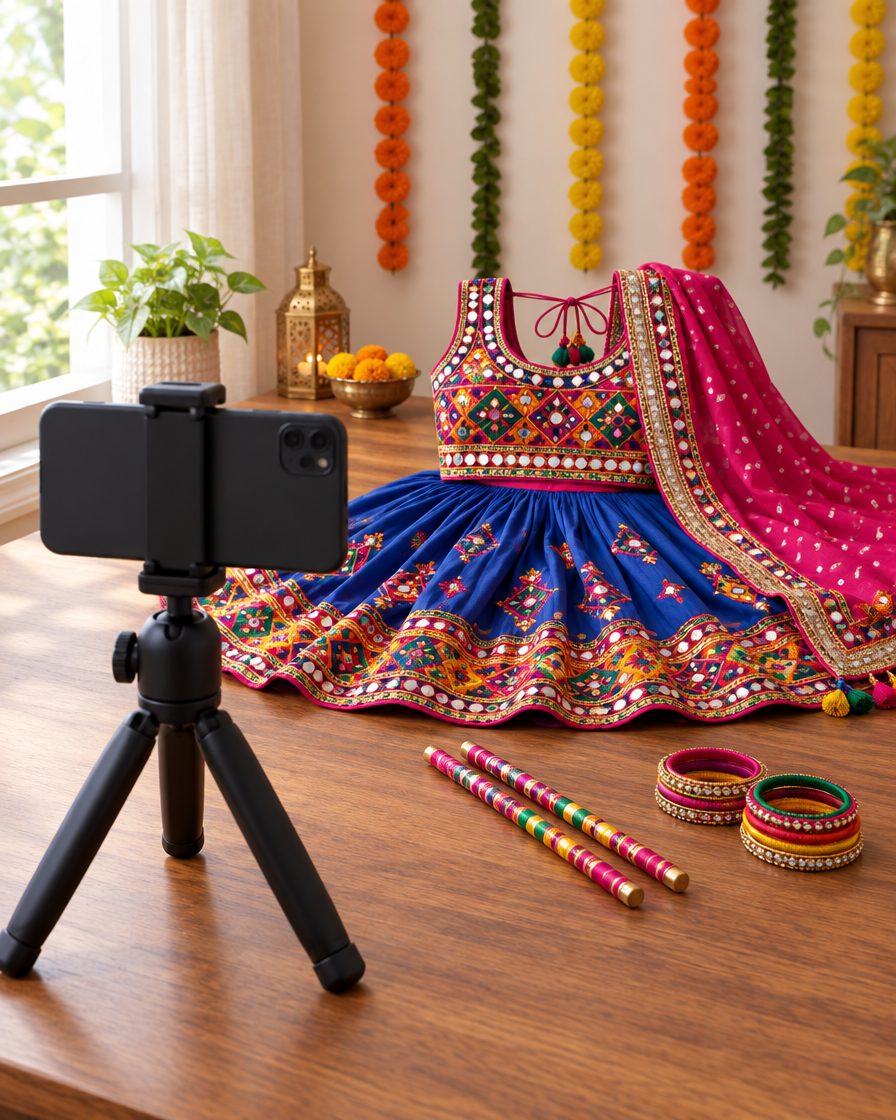
You have Navratri clips on your phone, but where should the Reel start? First choose three short shots: a detail of the outfit, the dandiya movement and your full look. In this guide we will join them in VN to make a simple opening. AI is optional; you can do the whole edit with your own recorded clips.

Video example: Dandiya movement shot
What you need
- The VN video editor on your phone.
- Three clear vertical clips: a detail of the clothes or jewellery, a dandiya shot and your full look.
- If you want to add music, audio that you are allowed to use in your Reel.
First, record these three clips
- Clothes detail: record the dupatta embroidery or bangles from close. Keep the phone steady and show a little movement.
- Dandiya shot: tap both sticks together slowly once. Keep your hands and the sticks inside the screen.
- Full look: keep the phone a little far away, look at the camera and turn slightly. Do not cut off your head or the important part of the outfit.
In each clip, also record a little before and after the action, so you have room to cut while editing. You do not need to bring the diya, dandiya or fabric very close to the camera lens.
Join the clips in VN
The Timeline is the line of clips at the bottom of the screen. This is where you decide which clip plays first and how long it is shown.
- Start a new project in VN and add your three clips. Keep this order: detail, dandiya, full look.
- For a vertical Reel, choose the 9:16 video ratio. Check in the preview that your head or hands are not being cropped.
- Select the first clip. Drag both edges inward to remove the extra start and ending. This is called trimming.
- If you need to cut from the middle, stop the timeline at that point and use Split. Select the unwanted part and remove it.
- Make the other clips short too. For practice, you can start with about one second for each shot; if the action looks incomplete, keep that clip a little longer.
- Play the whole sequence and check it. The first time, skip fancy transitions and use straight cuts—one clip ends, the next one starts.
The Trim, Split and ratio controls are also shown in VN’s official beginner guide. In your app version, the buttons may be in a different place.
When to add music
First, watch it without music and check that the opening is easy to understand. Then add audio and, while listening, adjust where the clips change. The beat is the rhythm that repeats in a song. Not every song has its beat at three seconds.
Save the video
Check the outfit, hands and light in the preview. Use Export/Save to save the edited video to your phone. At the start, you can use the app’s suggested export settings; you do not need 60fps. Play the saved video in your gallery and check the sound and cuts again.
No clip of the decoration? Use these optional images
The prompts below make a photo, not a moving video. Paste a prompt in Gemini to make an image, save it and add it to your edit. You do not need to upload a selfie. Gemini image help.
Optional image 1: Festive lights
A still image to place in the middle of the Reel. It will have no movement.
Check the result before you use it. Features, limits and cost depend on your AI app account.
Optional image 2: Colourful fabric detail
An illustration to show a festive mood; it is not a photo of any real product.
Check the result before you use it. Features, limits and cost depend on your AI app account.
Optional image 3: Diya and flowers
You can use this still image in your Reel in place of a decoration shot.
Check the result before you use it. Features, limits and cost depend on your AI app account.
Common problems and simple fixes
- The opening goes by too fast: make the shot that people do not have time to understand a little longer.
- The photo is not moving: a still image made with AI has no movement. Use a recorded clip, or keep the image as a still.
- The clothes colour looks wrong: reduce heavy filters. When you show a product from a shop, use its real photo or video; do not use AI fabric as proof of the product.
Will three seconds increase my views?
This is a practice idea for arranging three shots, not a formula for views. The opening should be clear enough that viewers know right away what the Reel is about. Set the rest of the Reel’s length based on your footage and story.
For more editing ideas, see Creator Kit.